
Answer your first buyer questionnaire
Bring in a buyer's questions, check they were all found, choose what they cover, analyse them against your record, and read what each status means.
Turn a buyer's questionnaire into a set of answers. You bring in the questions, tell HumanWox which AI system they are about, and it works out, for each question, whether your record already answers it or there is a gap.
Throughout these guides we follow one example. Northwind Analytics Ltd runs an AI system called the Customer Support Assistant, and Sam Taylor, Northwind's Governance Lead, answers buyer questionnaires for it. The screenshots below show two example requests: a spreadsheet from Westshire Council, and a pasted questionnaire from Meadowbrook NHS Trust that the later guides continue.
Before you start
- You are a Governance Lead or a Member.
- You have the buyer's questionnaire as a spreadsheet (.xlsx) or a Word file (.docx), or the questions to paste.
- It helps to have registered the AI system the questionnaire is about (see Build the Governance Record for an AI system). You can also create the system as you go.
Steps
Start a new request
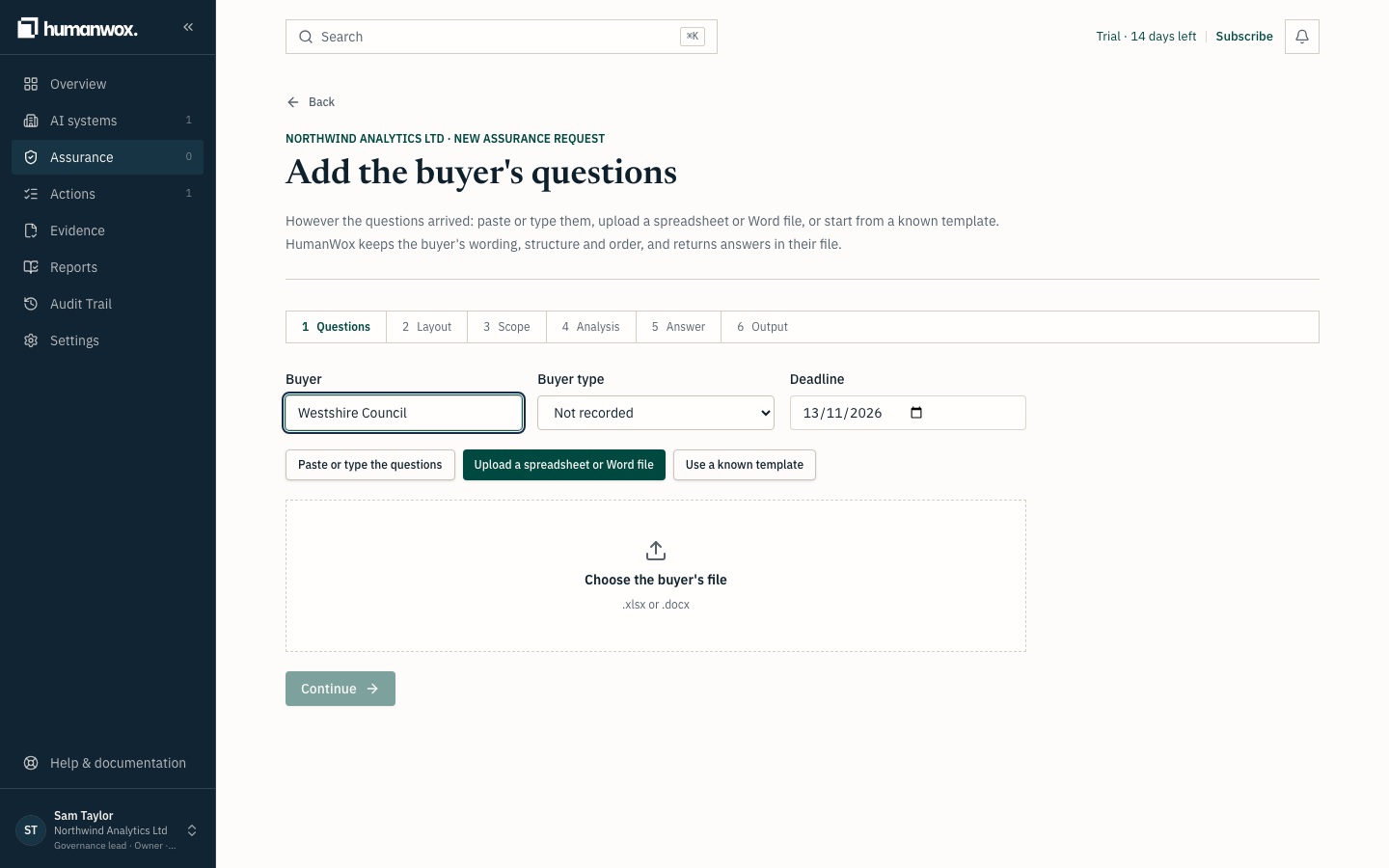
From Getting started or the Assurance page, start a new buyer request and enter the buyer's name. Here Northwind starts a request for a spreadsheet from Westshire Council.
You see the page Add the buyer's questions, with three choices: Paste or type the questions, Upload a spreadsheet or Word file, and Use a known template.
In the record a new assurance request is created against your organisation, with its own reference.
Bring in the questions
Choose the way that matches how the questions arrived.
If the buyer sent a spreadsheet or Word file, choose Upload a spreadsheet or Word file and choose the file. HumanWox reads the layout and shows how many questions it found.
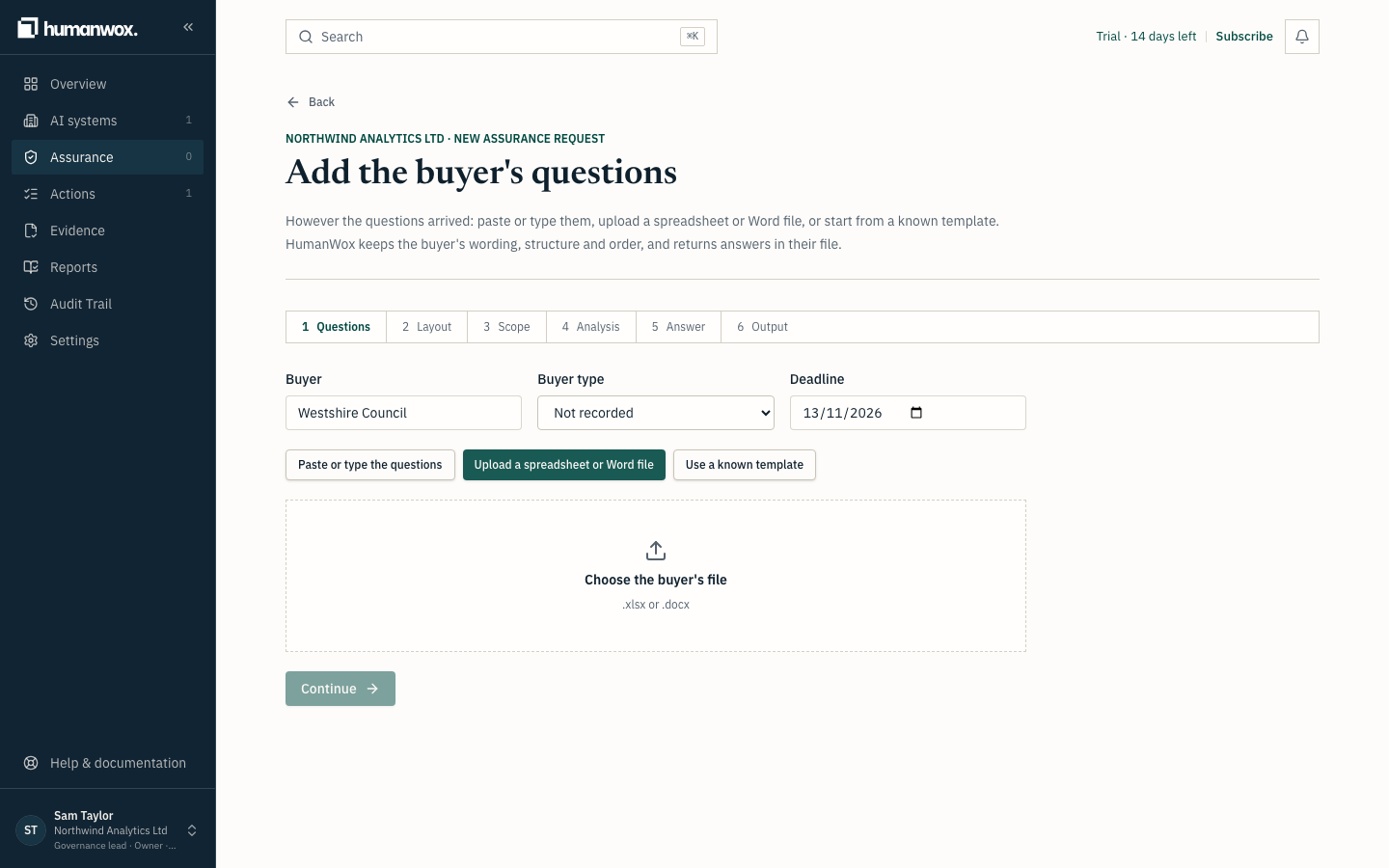
If the buyer sent the questions in an email or a web form, choose Paste or type the questions and paste them, one per line, keeping the buyer's numbering.
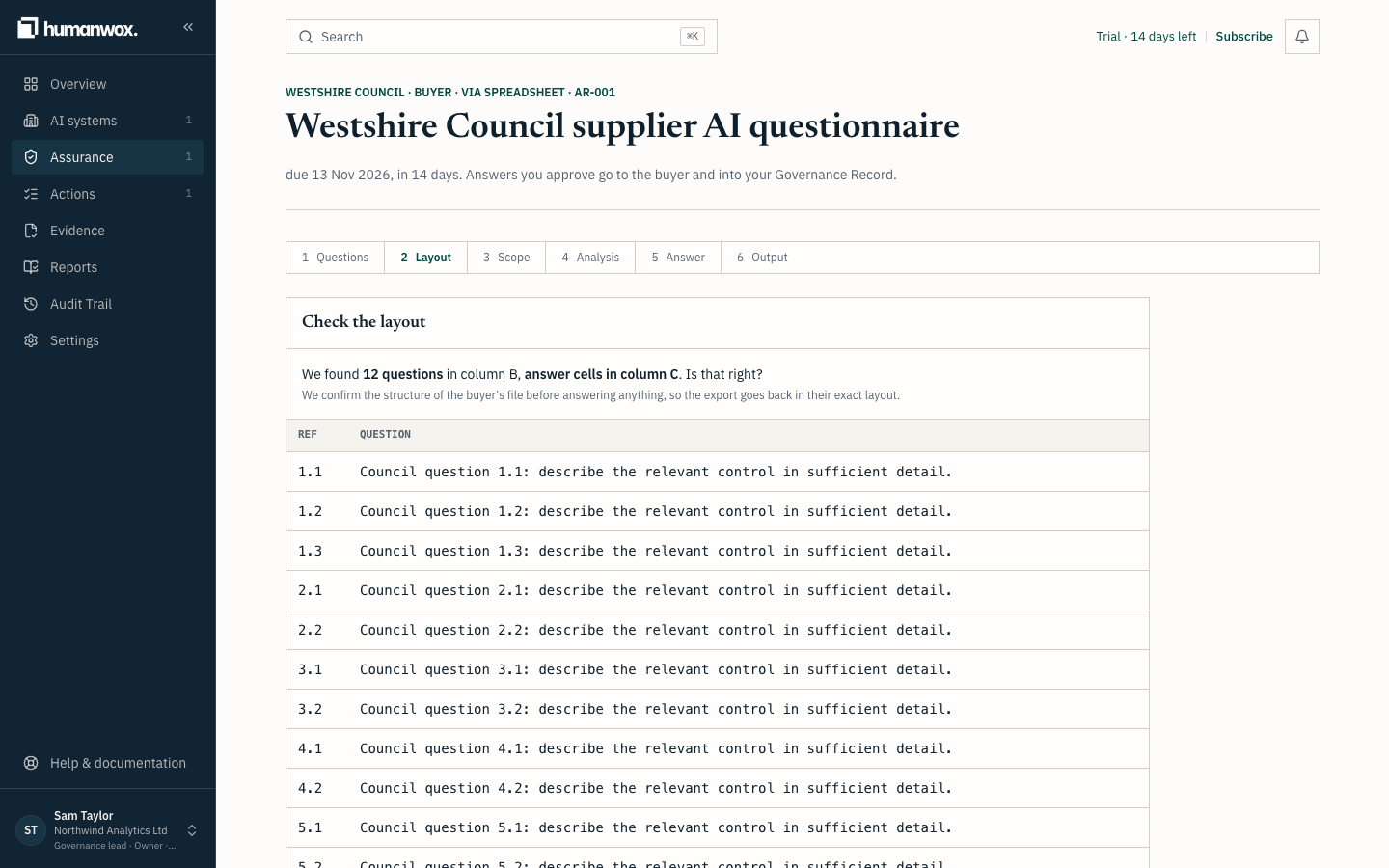
You see the confirmation We found N questions, with the buyer's wording, structure and order kept.
In the record each question is stored against the request exactly as the buyer wrote it.
Check every question was found
Select Show all N questions and compare the list with the buyer's file, including the answer type and any character limit.
Tip
If the count is lower than the buyer's file, use Adjust columns on a spreadsheet so HumanWox reads the right question and answer columns. For a Word file, check the questions sit in the document's tables.
When the list is right, confirm it.
In the record the questions are confirmed and the request is ready to be scoped.
Choose what the questionnaire covers
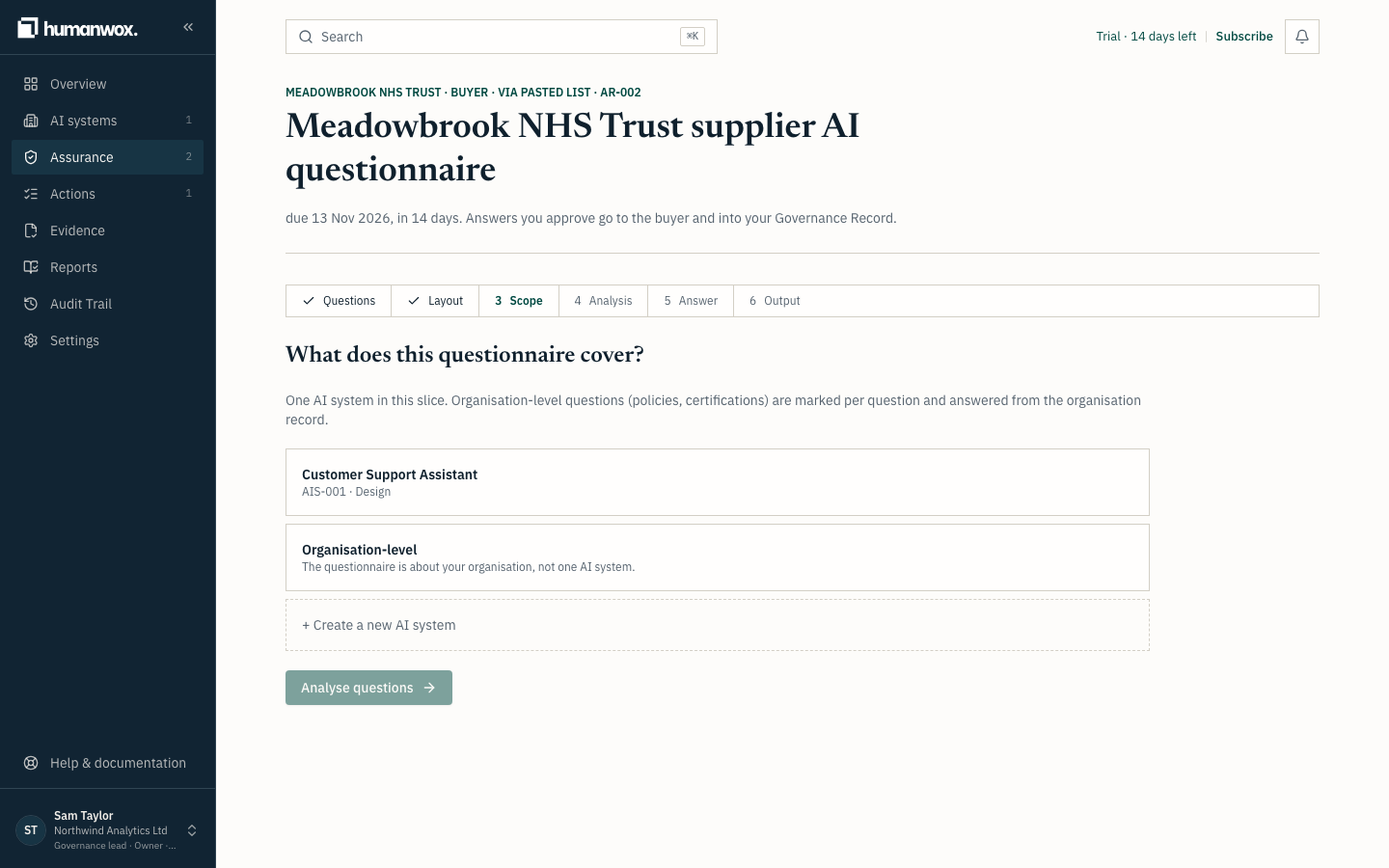
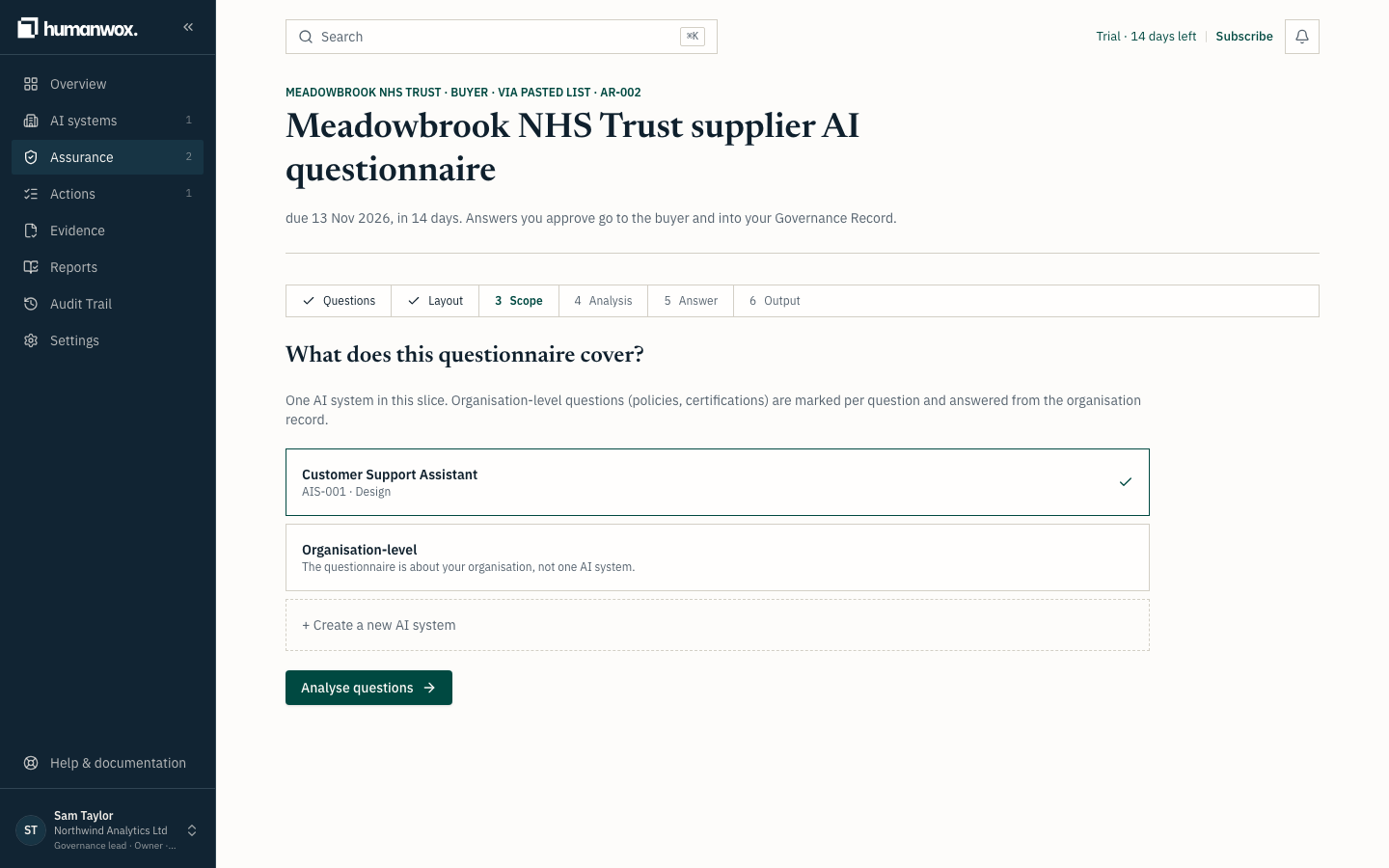
Choose the AI system the questionnaire is about, for example the Customer Support Assistant. Choose Organisation-level instead if the questionnaire is about your organisation rather than one system.
You see the question What does this questionnaire cover? with your systems listed, plus Organisation-level.
In the record the request is linked to that system (or marked organisation-level), which decides where its answers are drawn from.
Analyse the questions
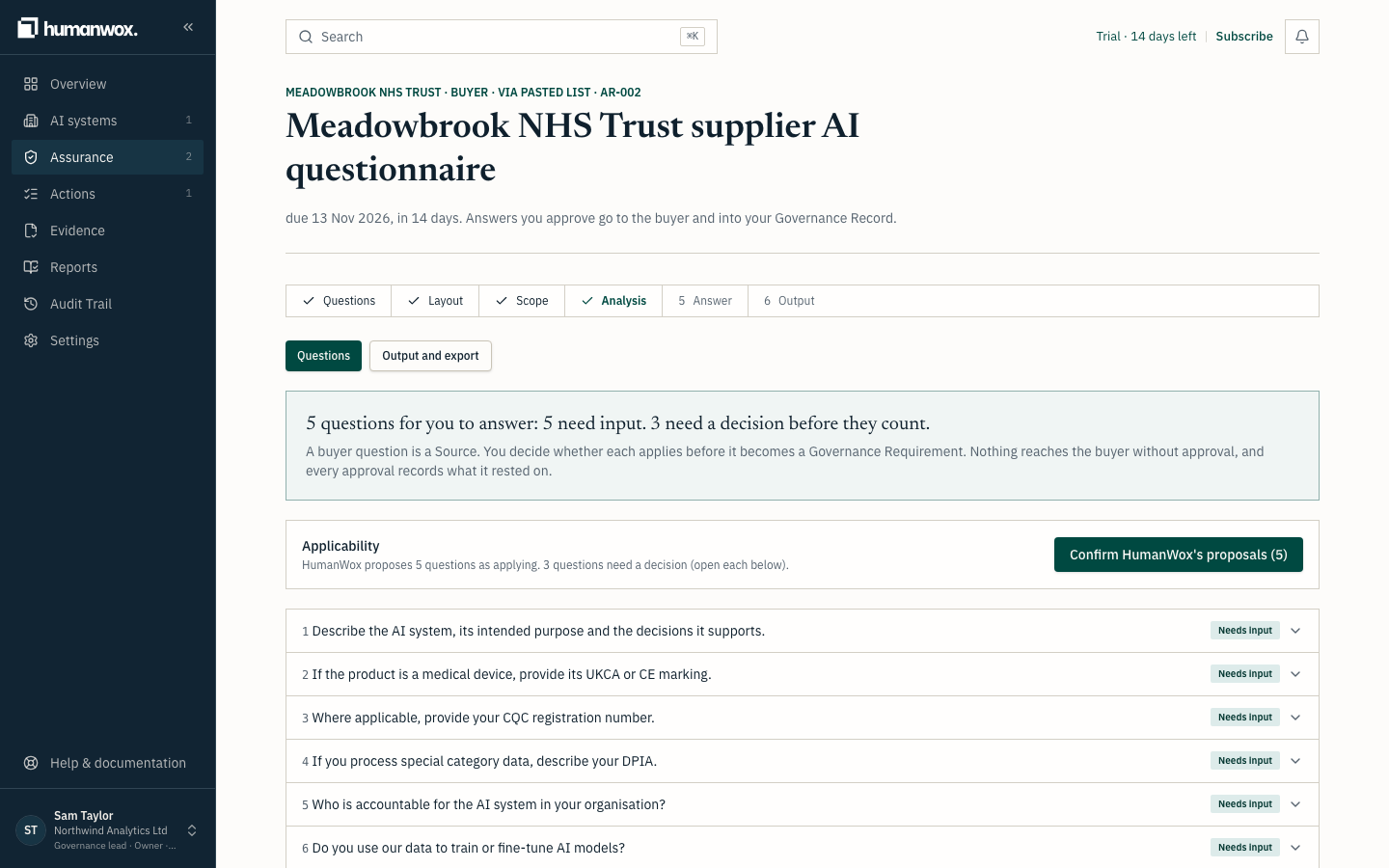
Select Analyse questions.
You see each question sorted into a readiness status, with a short summary of how many need your input and how many are gaps.
In the record nothing is approved and nothing is sent. Analysis only works out where each question stands against the record as it is today. Analysis creates no Governance Requirement by itself.
What each readiness status means
HumanWox gives every question a readiness status. The status is worked out by the product from the record; you never set it by hand.
| Status | What it means |
|---|---|
| Ready to approve | The record already answers the question. Review it and approve. |
| Needs input | Someone needs to draft the answer, or confirm it again. |
| Needs a decision | A conditional question that needs an applies or does not apply decision before it is counted. |
| Gap | The record has no answer yet. Draft one. |
| Buyer to complete | The question is for the buyer to answer, not you. |
| Not applicable | You have recorded that the question does not apply. |
| Approved | You have approved an answer for the buyer. |
Note
No answer reaches the buyer until you approve it. Analysis and drafts stay inside HumanWox.
Why it works this way
The record is the source, and every answer is a view of it. You decide what applies before anything is counted, so each answer is drawn from what is already true and then approved by a person.
If something looks different
- Fewer questions than the buyer sent. Use Adjust columns on a spreadsheet, or check the questions are in the document's tables for a Word file.
- A question shows "Needs a decision" rather than "Gap". It is conditional, so it needs a decision first. See Mark questions that don't apply to your AI system.
Related guides
Create your HumanWox organisation and invite your team
Sign up, create your organisation, invite the people who help run your governance, and learn which role does what.
Mark questions that don't apply to your AI system
Record which questions do not apply to your AI system, with a reason, and confirm the ones that do, so nothing is counted as a gap by mistake.