
Create your HumanWox organisation and invite your team
Sign up, create your organisation, invite the people who help run your governance, and learn which role does what.
Create your HumanWox organisation, invite the people who help run your governance, and learn which role does what.
Throughout these guides we follow one example. Sam Taylor is setting up Northwind Analytics Ltd so Northwind can answer buyer questionnaires about its AI system, the Customer Support Assistant.
Before you start
- A work email address.
- Nothing else needs to exist. The person who creates the organisation becomes its Governance Lead and its Owner, on a 14-day Standard trial.
Note
If a colleague has already invited you, you do not create an organisation. Open the invitation link in your email and you join theirs instead, with the role they chose for you.
Steps
Create your account
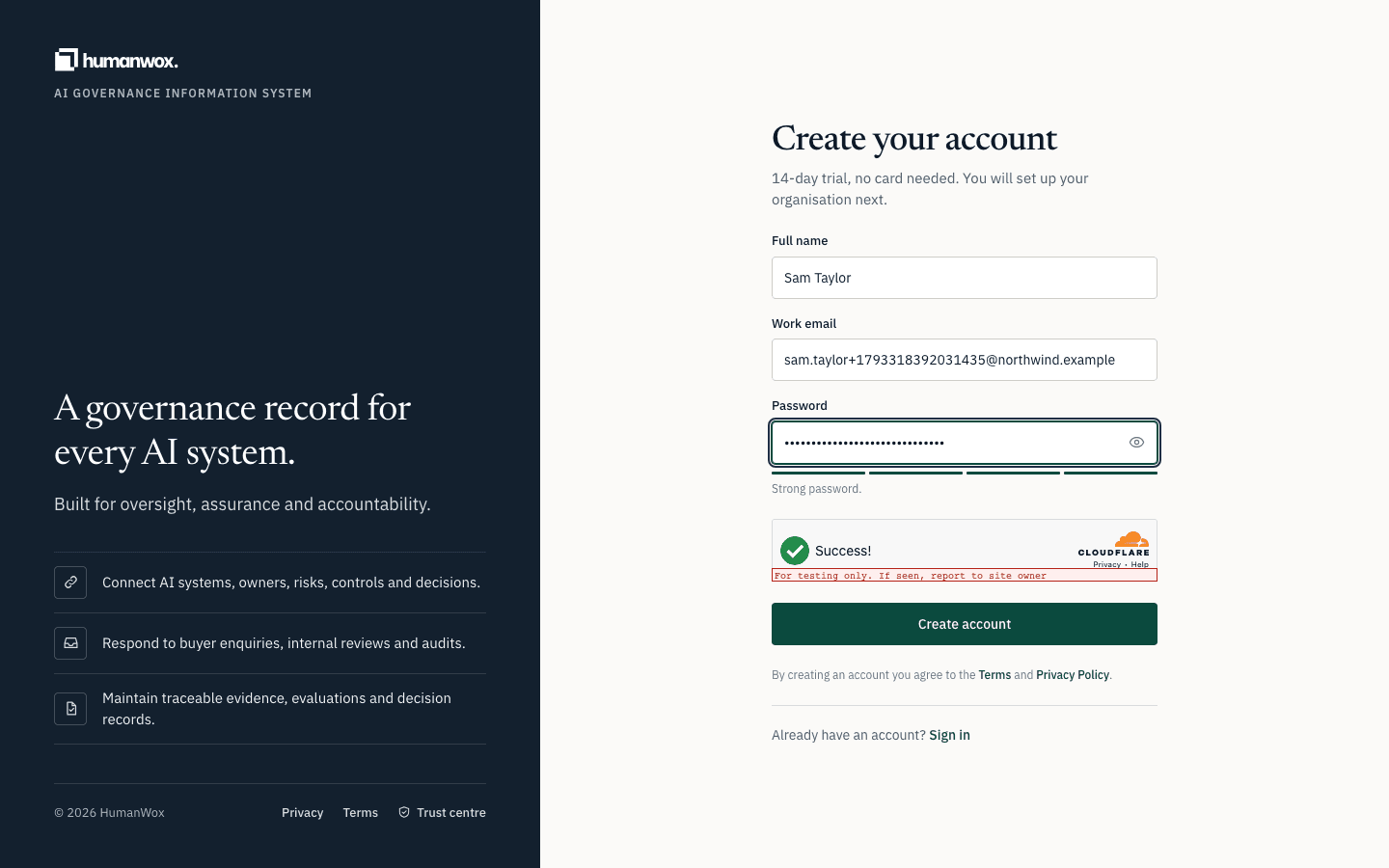
Enter your full name, work email and a password on the sign-up page, then select Create account.
You see either the onboarding wizard straight away, or a Check your email screen. If you see it, open the link in the email to confirm your address, then sign in.
In the record your account is created. It is confirmed before it can join an organisation.
Tell us about your organisation
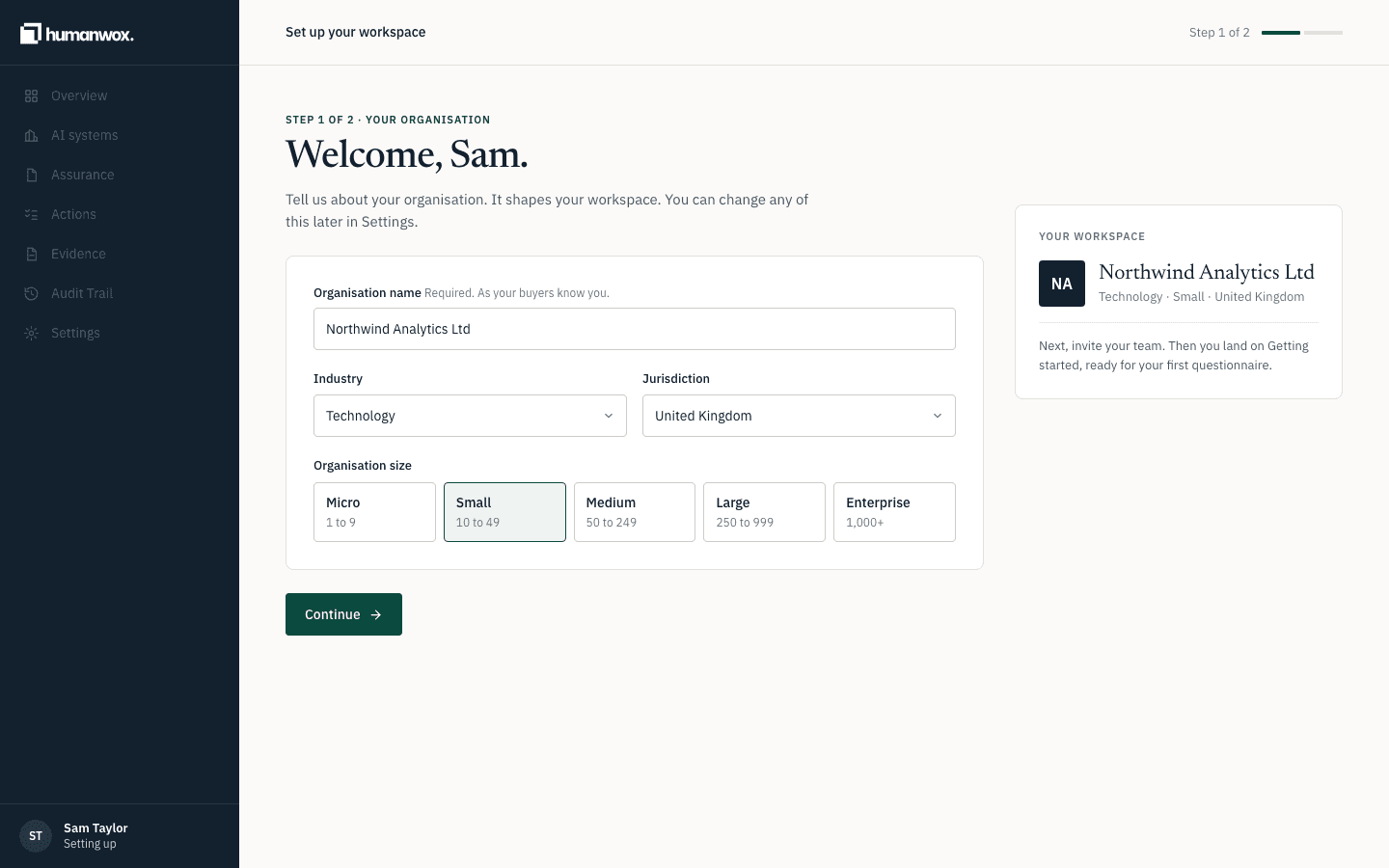
Enter your Organisation name as your buyers know you, choose your industry, jurisdiction and size, then select Continue.
You see step two, Invite your team.
In the record your organisation is created with you as its Governance Lead and Owner, and a 14-day Standard trial starts.
Invite your team, or skip for now
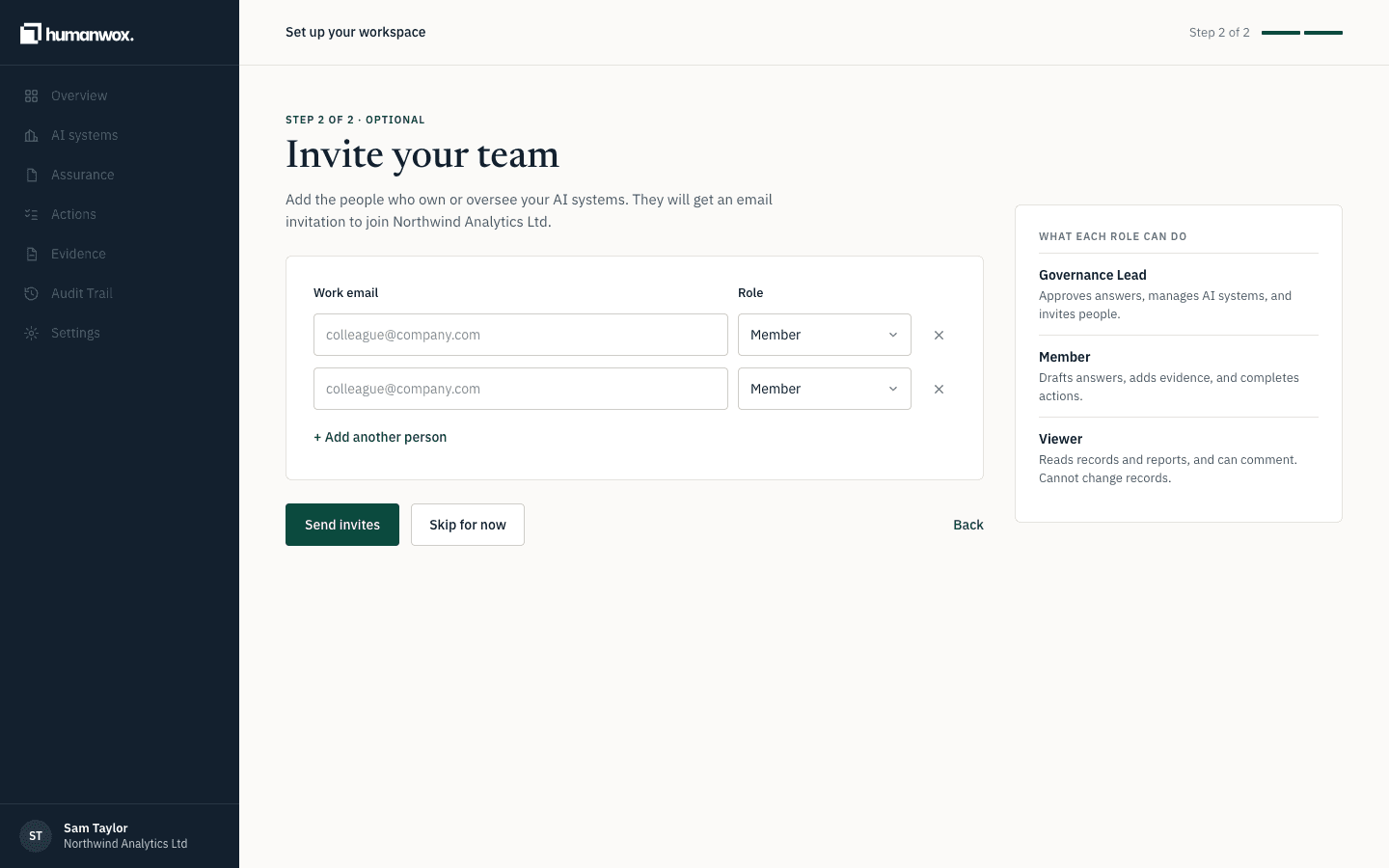
Add the people who own or oversee your AI systems and choose a role for each, or select Skip for now. You can invite people later in Settings.
You see the confirmation that your workspace is ready.
In the record an invitation is created for each person, and they receive an email link. Their access starts when they accept.
Open your workspace
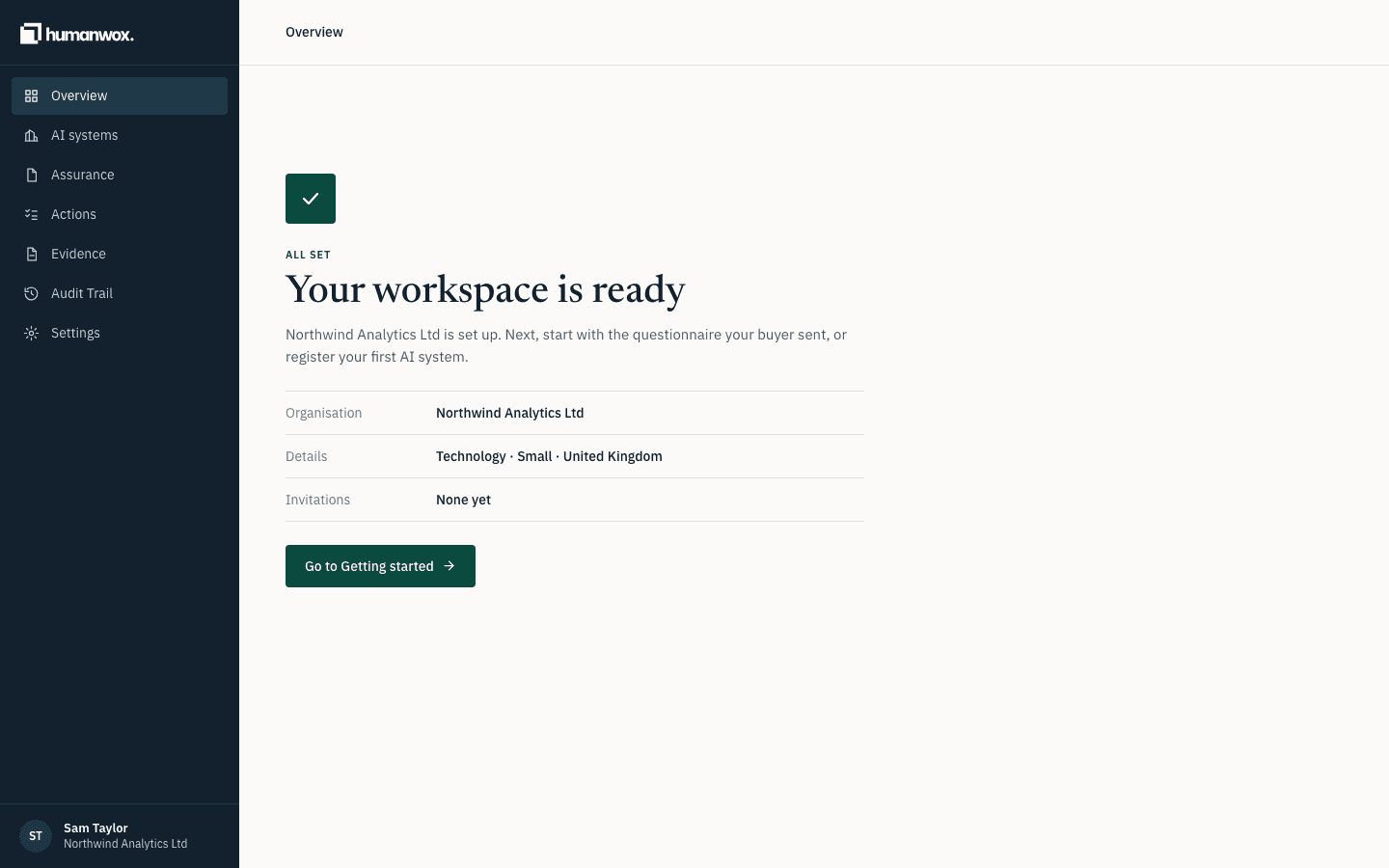
Select Go to Getting started.
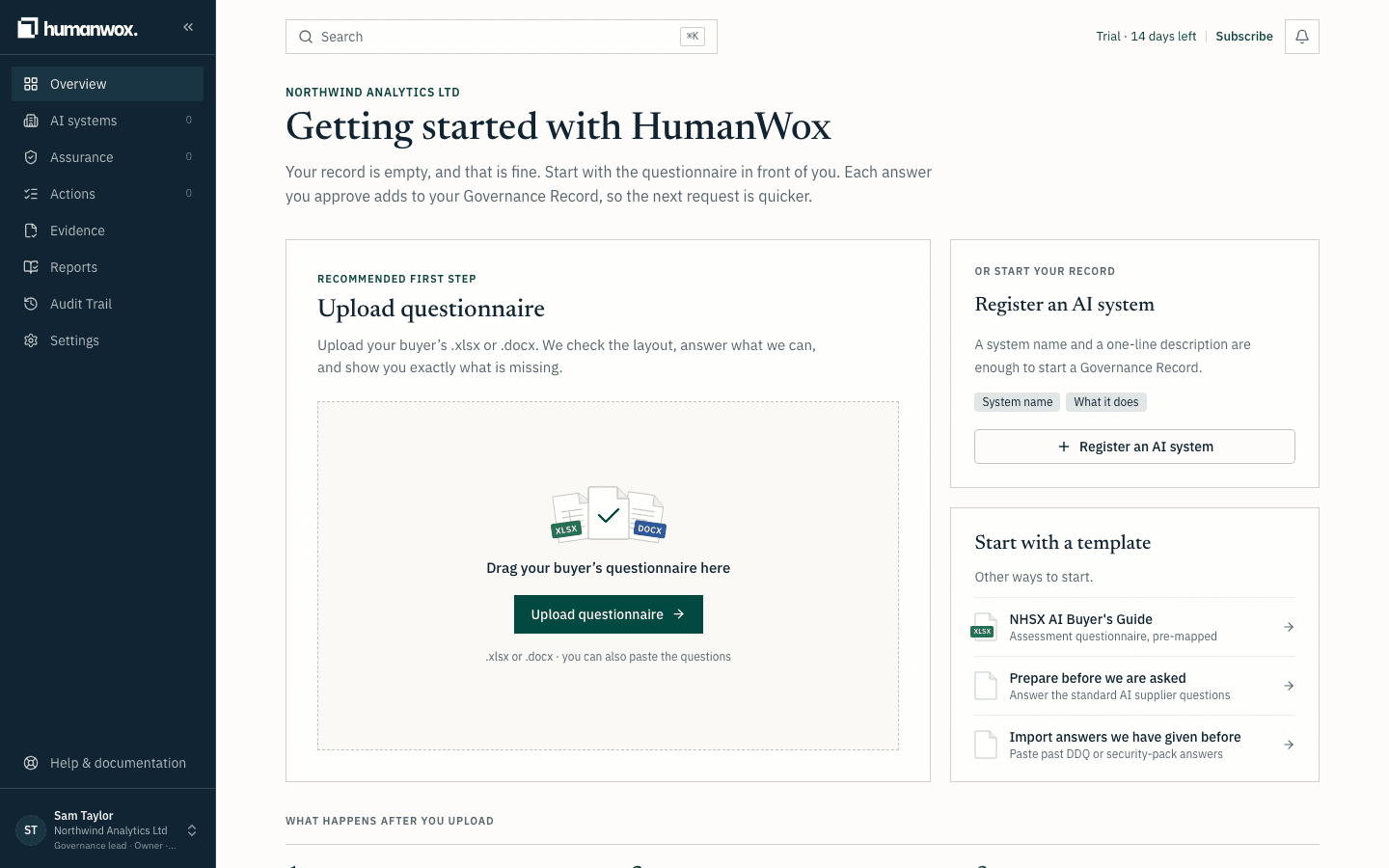
You see the Getting started screen, with an empty Governance Record ready for your first questionnaire or AI system.
In the record nothing yet. The record fills as you register systems and approve answers.
Roles
Everyone you invite has a role. Two attributes, Owner and Admin, sit on top of a role.
| Role | What they can do |
|---|---|
| Governance Lead | All governance across the organisation: approves organisation-level answers and evidence anywhere, activates frameworks and decides applicability, manages Governance Requirements. |
| Member | Creates and edits records, proposes answers, uploads evidence and records decisions. Approves only where they are Accountable for the system or a linked system. |
| Contributor | Sees and works only on the items they were asked to help with, plus comments. Free on every plan. |
| Viewer | Reads everything and comments. Cannot edit. |
| Attribute | What it carries |
|---|---|
| Owner | Held by exactly one person: billing, deleting the organisation, and transferring ownership. |
| Admin | Can be held by any role: members, invitations, settings and integrations. |
Why it works this way
Your account vouches for everything you approve, so you confirm you own your email before you join an organisation. One person owns the organisation, and everyone else has a role that matches the work they do.
If something looks different
- You see "Check your email" and no link arrives. Check your spam folder, then use the resend link on that screen. The address you signed up with is shown there.
- You expected to create an organisation but you are already in one. You accepted an invitation, so you joined an existing organisation. A Governance Lead there can change your role.
Related guides
HumanWox Help
How-to guides for answering buyer questionnaires, building the Governance Record for your AI systems, and keeping it up to date.
Answer your first buyer questionnaire
Bring in a buyer's questions, check they were all found, choose what they cover, analyse them against your record, and read what each status means.