
Manage your organisation profile, team and security
Set your organisation profile, manage your team and roles, invite members, and turn on two-factor authentication.
Set up your organisation profile, protect accounts with two-factor authentication, and manage your team and their roles.
In our worked example, Sam Taylor is the Governance Lead and Owner of Northwind Analytics Ltd and is adding colleagues who help answer questionnaires about the Customer Support Assistant.
Before you start
- You are a Governance Lead or an Admin for the organisation and team settings.
- Any member can set up their own two-factor authentication.
Steps
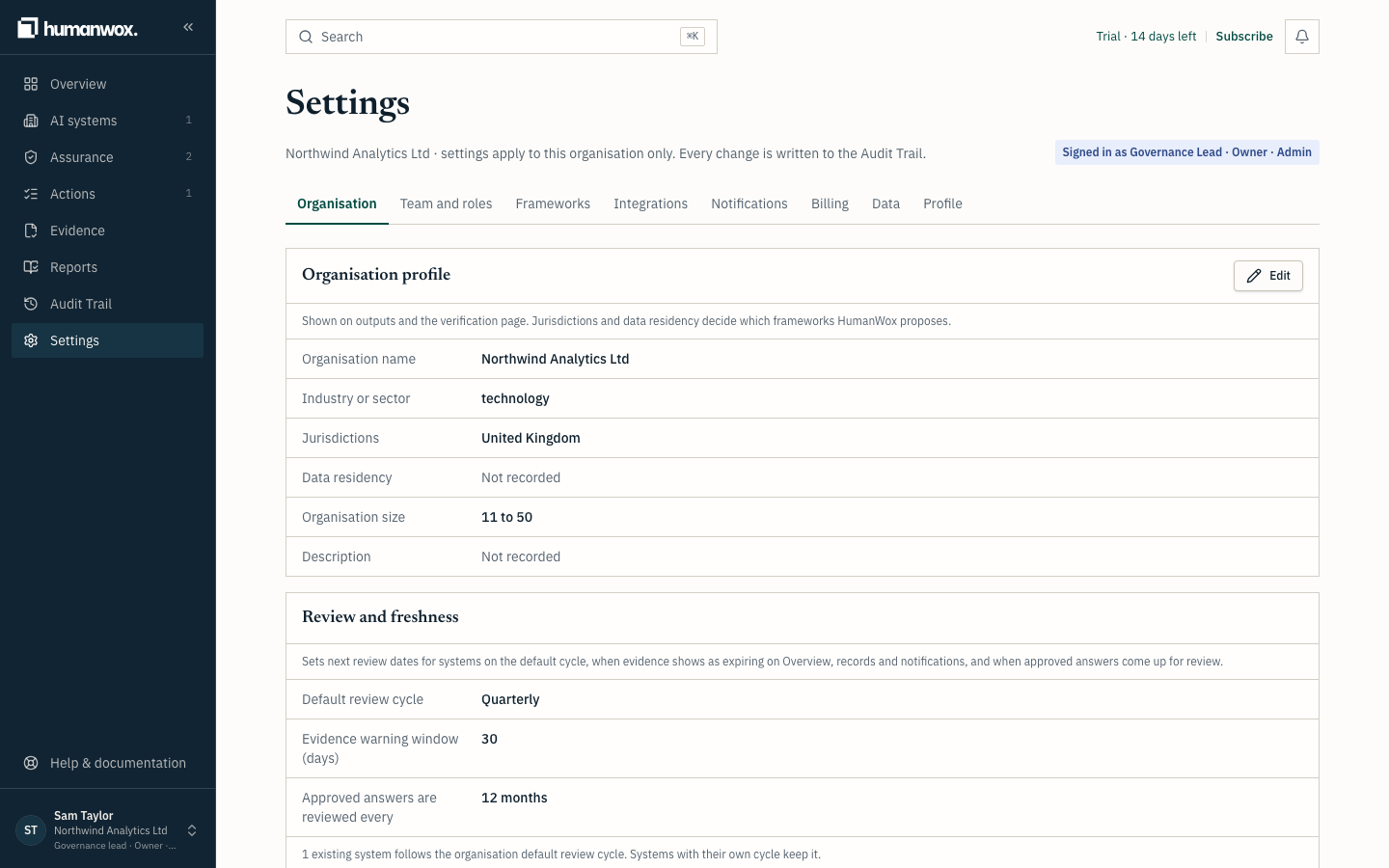
Edit your organisation profile
Go to Settings, then Organisation. Set your organisation name as your buyers know you, your industry, size, jurisdictions and data residency, then select Save changes.
You see your details saved. Only a Governance Lead can edit the profile; for everyone else the fields are read-only.
In the record the organisation profile is updated, and the change is written to the Audit Trail under your name.
Manage your team
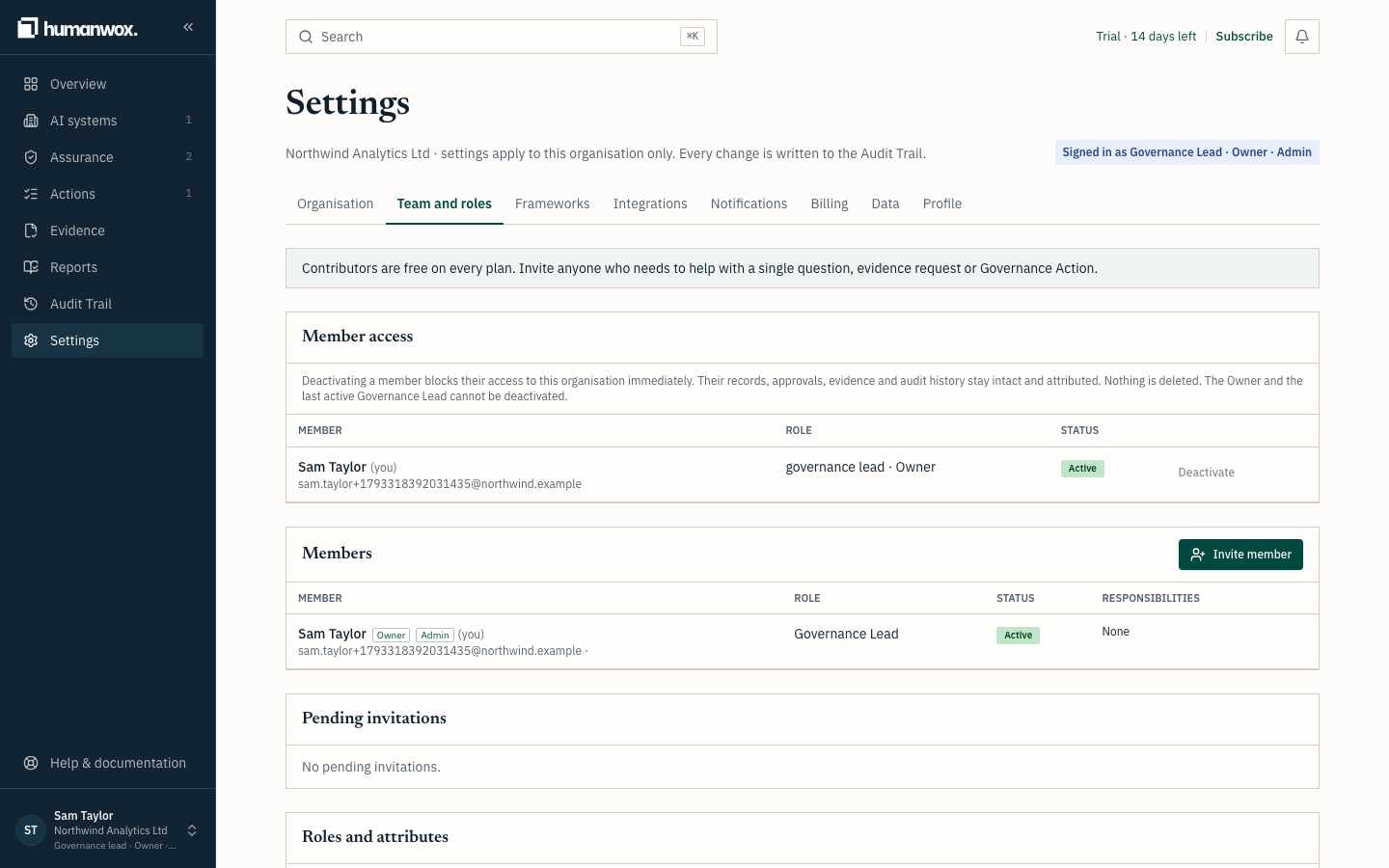
Go to Settings, then Team and roles. You see each member, their role, and whether they hold the Owner or Admin attribute.
In the record nothing changes until you change a role, invite someone or remove someone. Each of those is written to the Audit Trail.
Invite a member
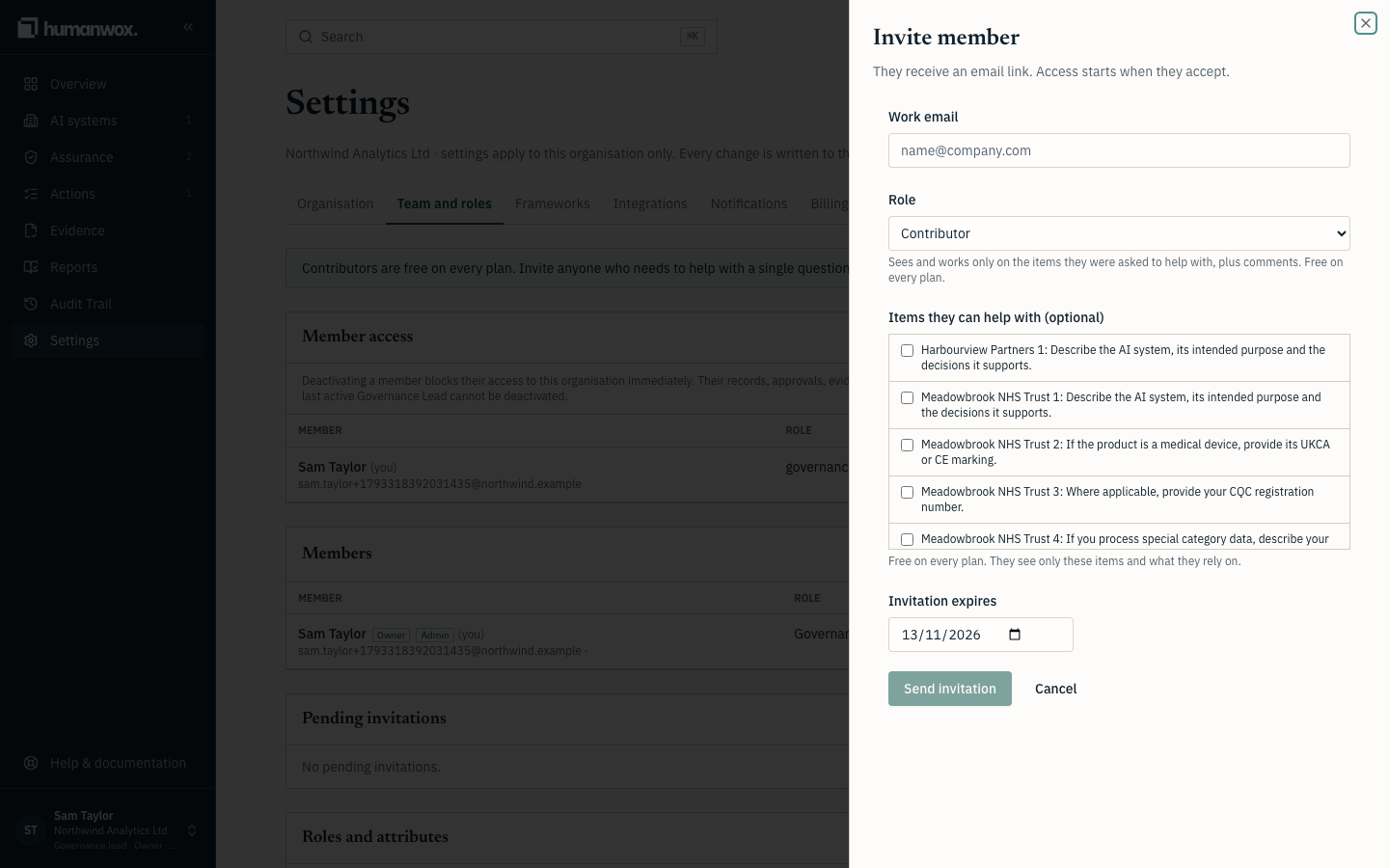
Select Invite member, enter their Work email, choose a Role, then select Send invitation.
You see the invitation under Pending invitations until the person accepts.
In the record an invitation is created. The person's access starts only when they accept, using the email address you invited.
Turn on two-factor authentication
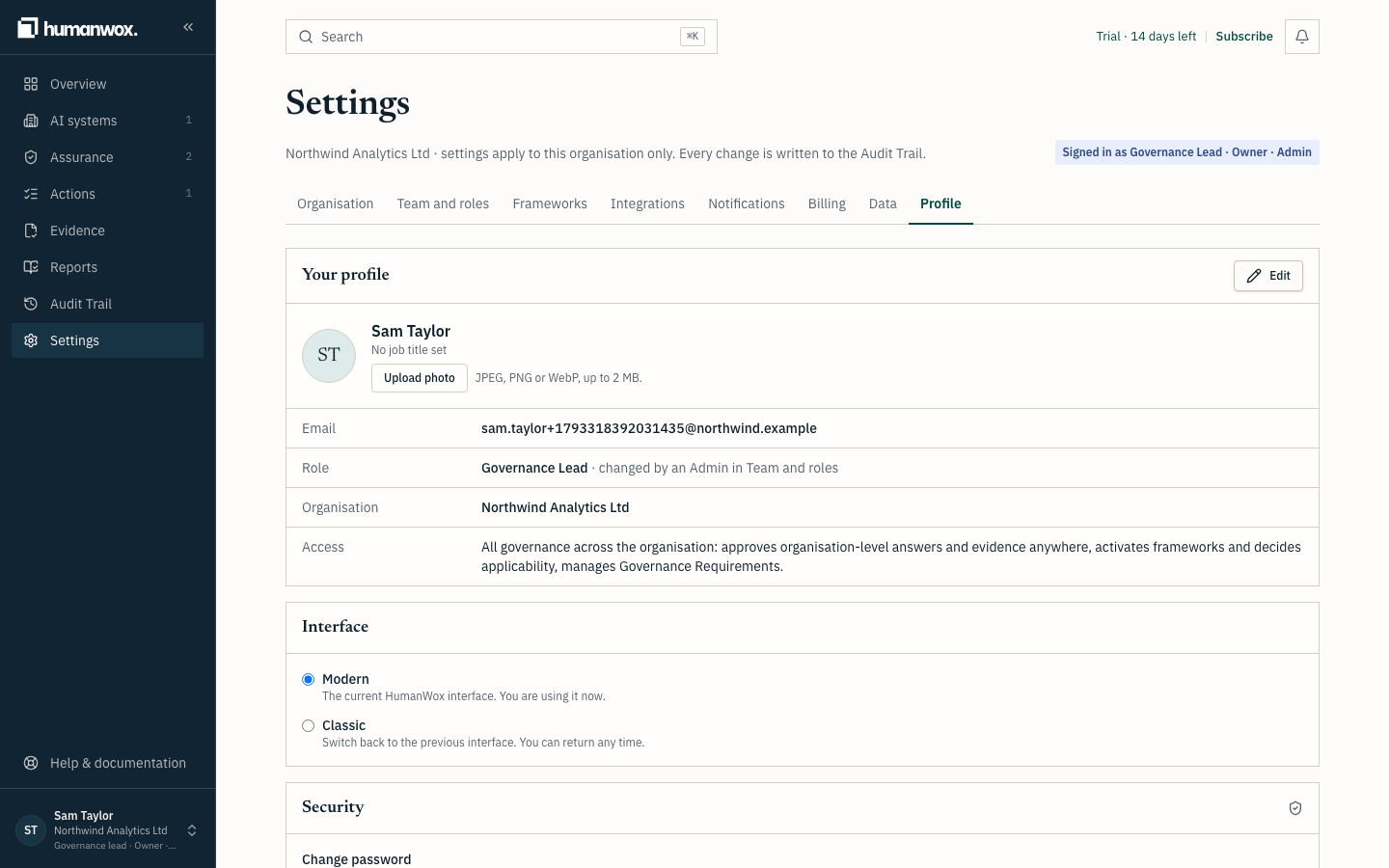
Go to Settings, then Profile. Enrol an authenticator app, confirm a code, and keep your backup codes somewhere safe.
You see two-factor authentication shown as on for your account.
In the record your enrolment is written to the Audit Trail. A Governance Lead can require two-factor for everyone in the organisation, and must have it turned on themselves first.
Note
There is no separate Security tab. Your own two-factor authentication is on the Profile tab, and the organisation-wide requirement is on the Organisation tab.
Approvals
Who can approve is set by role and responsibility, not by a separate switch. A Governance Lead can approve organisation-level answers and evidence anywhere. A Member can approve only where they are the Accountable person for the system, or for a linked system.
Who can decide
- Organisation-level questions and framework clauses need a Governance Lead.
- A system's questions and clauses can be decided by a Governance Lead or that system's Accountable person.
Why it works this way
The Accountable person, or a Governance Lead, vouches for what is approved. Authority follows role and responsibility, so you do not keep a separate list of who may approve what.
If something looks different
- The profile fields are read-only. Only a Governance Lead can edit the organisation profile.
- You cannot invite members or change roles. Only an Admin can. Only the Owner can transfer ownership.
- You cannot require two-factor for everyone. Turn it on for yourself first, then require it.
Related guides
Produce reports and verify an exported bundle
Produce the reports your board, auditor or buyer needs, including the Audit Evidence Pack, and let a recipient check that an exported bundle has not changed.
Manage your trial, plan and billing
Understand your trial, the plans available, who can change them, and how to export your record.